Front line customer service support for your embeddable
First line support refers to the initial support provided to an end user to assist them in troubleshooting any issue that they may raise.
It is the responsibility of the partner to provide first line support services as an eSIM vendor. You will be expected to identify and subsequently provide the end user with advice to aid in resolving basic problems arising due to activation, configuration, and other questions.
Support tickets should only be raised to Zendit when it has been determined that there is a technical or connectivity issue which cannot be resolved without Zendit’s support. Tickets should not be raised to Zendit to aid with identifying first line end user faults.
1. Check the eSIM status
The two possible eSIM states are Not Installed or Installed
If Not Installed follow the steps in numerical order, if Installed skip to step 7. Help article below to check eSIM status:
Navigate to the eSIM Console in the Zendit Client Console
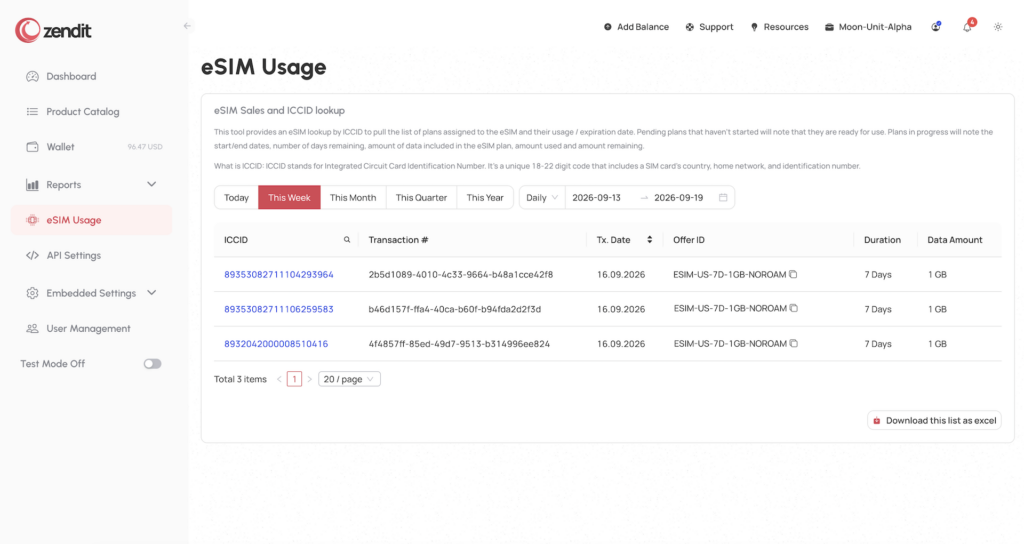
You can search for the eSIM by the date range or by the ICCID. Once you have located the ICCID, click on it to view the status.

The First Installed Date will show when the eSIM was installed. If it is set to Not Installed or December 31, 1969, the eSIM is not currently installed.
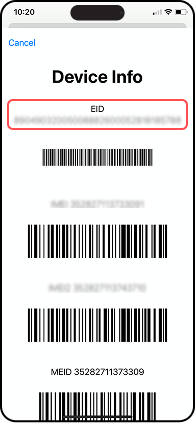
2. The device must be eSIM compatible
Instruct the user to verify that their device is eSIM compatible. This process will work for both iOS and Android devices.
3. The device must be network unlocked
To check if the device is carrier unlocked, please see the guide on checking the carrier lock status.
4. The device must have a stable internet connection in order to install the eSIM
Either Wifi, or a good 4G connection are advisable for installing the eSIM.
5. QR Code Install or Smart Link Install
The user may either scan the QR Code or use the Smart Link URL provided in their receipt to install the eSIM. If using the Smart Link, the user must select the URL that matches their device type for either Apple or Android.
The QR code will work for any device if using the QR code for installation.
6. Manual Install
If the QR code did not scan successfully, or an error occurred using the Smart Link then a manual install is advisable.
The SMDP+ address and activation code are included in the receipt to perform the manual install.
7. Check the status of the eSIM
To determine if a network connection has been established. To check the status, a ticket will need to be opened with Zendit with the ICCID to verify the status of the eSIM.
8. Region or Country Check
Cross check the country displayed is included in the country list for the applied plan. You may use the Offer ID on the ICCID details in step 1 to check the catalog for the offer for the included country.
9. Network Check
Cross check the network the eSIM has established a connection on is included as a roaming network. Use the list of network coverage located here.
10. Data Roaming
If all of the above is checked and correct then the most likely cause of the issue is that Data Roaming has not been enabled. Ensure that the customer has enabled data roaming on the eSIM.
11. Configuration Screenshots
Suggest asking for a screenshot from the customer if you are not confident they have enabled data roaming.
12. APN Check
The APN is automatic and should not require setting, however, if data roaming has been confirmed as enabled then it is worth checking this is programmed correctly.
13. APN Configuration
If no APN is present advise manually programming the APN. It should be set to data.esim
14. No Network
If no network has been registered then it is highly likely the eSIM has not been turned on in the first place. Recheck the eSIM configuration and the settings to ensure that the eSIM is enabled and data roaming is on for that eSIM. Confirm with screenshots.
15. Manual Network Select
When having trouble with connectivity it is important to remember that networks only provide coverage in restricted areas. It is occasionally required, especially when travelling, to change the network being used. This may be due to the device not doing it automatically. Just the same as with a traditional SIM the network being used can be changed to select the one with the best or most consistent connectivity.
16. Plan Expiry
Has the limit of data that can be used on the plan ran out. Has the 7 day or 30 day timer ran out after an initial use. Check whether the plan is still queued, or whether it is active and being used.
17. Data Roaming Enable
When configuring data roaming, this is done the same way as for traditional plastic SIMs. In the settings menu of the device there will be options for enabling and disabling data roaming. For the best outcome, enable data roaming on the eSIM and disable data roaming on any other SIMs to ensure data services pass over the eSIM.
18. Other Issues
Likely no further action required after this point, however if a separate issue appears, go back to step number one and start again.
19. Revoke and Reissue
If issues persist with a specific eSIM, revoking the plan and applying it to a new eSIM for the end user to install and try again can occasionally get things going. For support on revoking a plan, contact Zendit support to escalate revoking the eSIM.
20. Top Up
If the previous plan has been fully utilised or expired and therefore unusable advise purchasing a new eSIM to continue connectivity.
21. Previous Use
Has the end user had a good connection previously when using this eSIM?
22. Possible Issues
If the end user has previously had a good connection, but no longer does then it’s possible a location change could be the reason for this change in service. Suggest manually switching to another network included in the roaming partners list.
Alternatively, the user could be in a built up area where congestion could be an issue. If there is peak usage times in areas being travelled to and towers are unable to support the number of devices in any one area.
23. eSIM refresh
Suggest an eSIM Refresh. For an eSIM refresh, ask the customer to switch the device into airplane mode to disconnect from the network and then switch it back out of airplane mode. This step will refresh the connection to the network.