Set up your client details, logos and styles.
To get started with Zembeddables, locate the Embeddable menu in the zendit console.
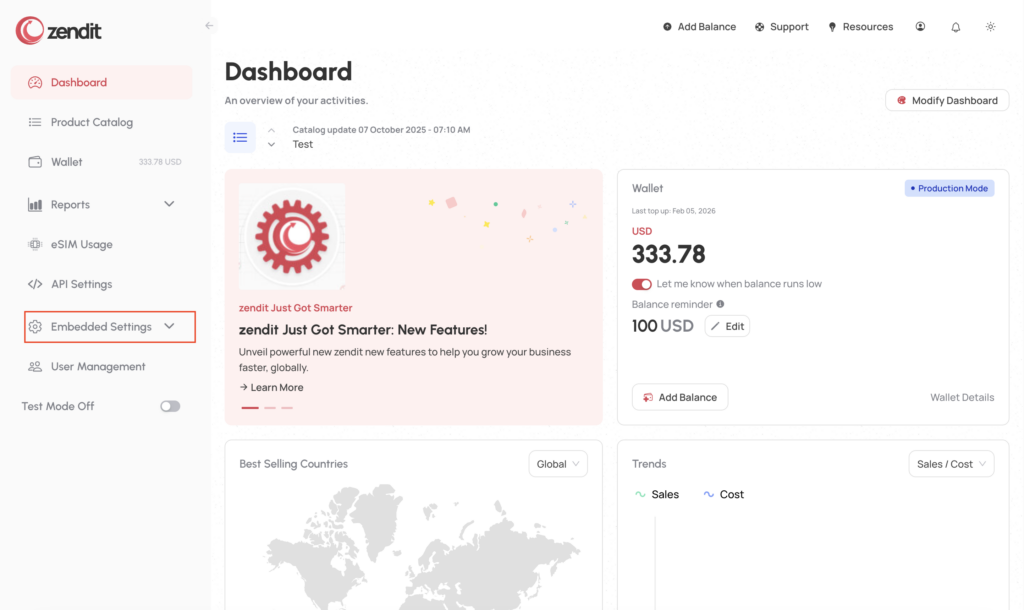
Next, select the Client Setup
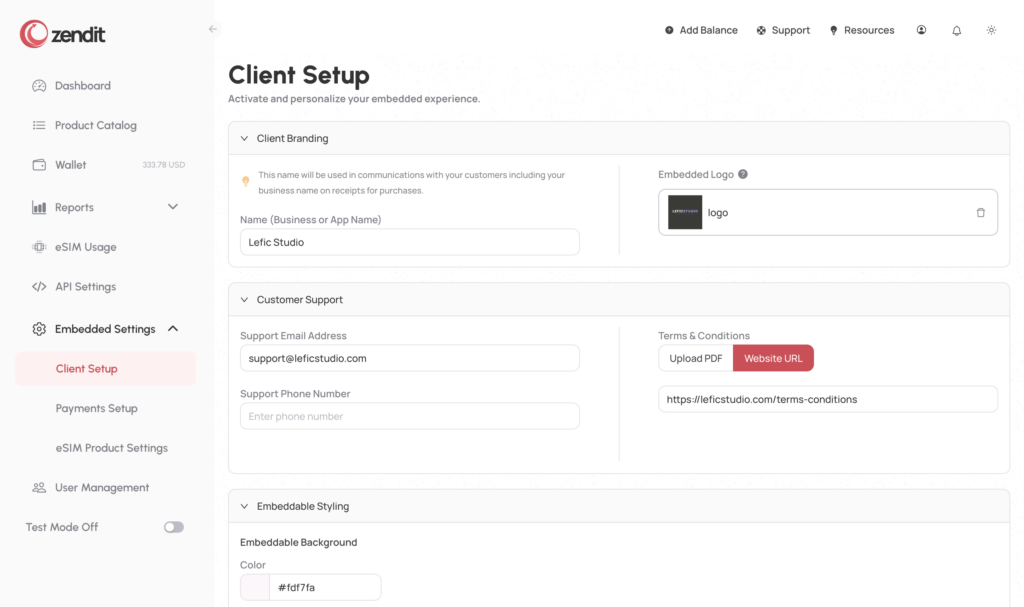
You’re now ready to setup your client profile.

In the branding area of the Client Setup, add the name of your app or business. This will be presented to the user on receipts that they receive via email.
Next upload a print quality logo that will be added to the receipt to identify your app or business.
In the customer support section, an email address is required for customers to contact you for support. If you need a hand for customer issues you can’t answer yourself, you can always escalate questions to zendit’s support team to help you support your customers.
You may optionally include a contact telephone number so your customers can call you for support.
Terms and Conditions for your business can be included on receipts and the Zembeddable either as a PDF uploaded or using a website link. Depending on the laws of where you are selling, Terms and Conditions are an important set of information for your customers.
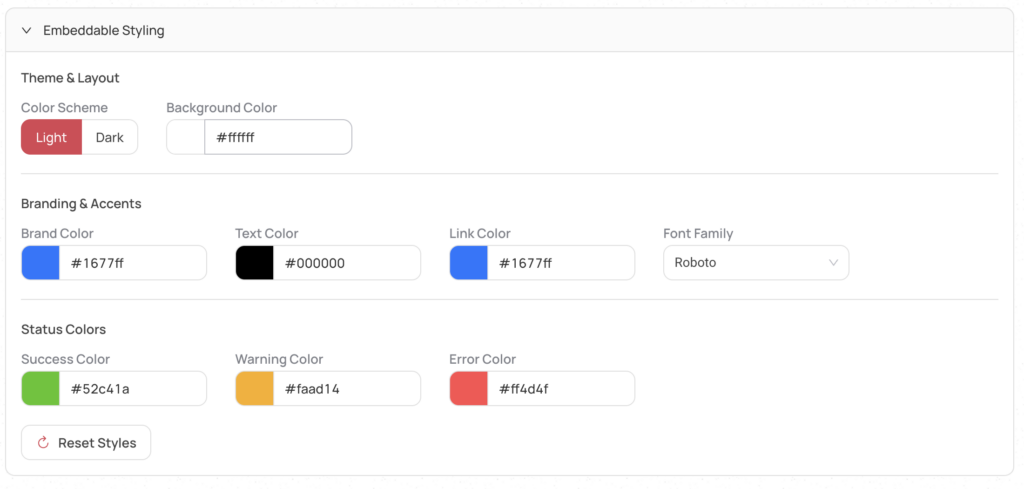
Zembeddabe supports the ability to style your website or app from the console. Features included:
Light or Dark theme – choose light for sites with lighter color shades or dark for sites that have darker color shades.
Select the background color to either match the background colors on your site/app, to an alternate color to make the embeddable stand out.
Select your branding color, text color, link color and a font that matches your site.
Select your status states for successful, warnings and errors that occur in the embed.
For more advanced integrations, we support both an IFRAME embed and an HTML embed. The HTML embed injects styles into the page that can be customized by more advanced developers who wish to override the embed styles with more fine grained control.
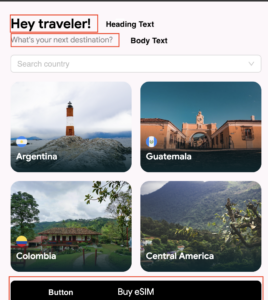
If you find problems with display of your Zembeddable, you can always reset the colors and start over.
Once satisfied with your settings, save and continue to Payment Setup.