Setting up currencies for your embeddable sales
Zendit Embeddable provides a currency manager allowing customers to pay in currencies that are setup. The embeddable provides a drop down for the customer to pick the currency and pricing will be shown to the customer in their selected currency and the selected currency will be used in the checkout process.
Zendit takes a daily dip on the FX rates for 168 currencies to use as a daily rate. These rates are taken at the beginning of the day in UTC timezone and will be used for the 24 hour period until the next dip for the currency. These FX rates are from the Zendit wallet’s currency to the foreign currency. Rates are based on the bank rate for the FX and may have minor deviation from the rates your credit card processor is using.
FX rates will be applied to the product price set in the Zendit catalog in the wallet currency.
Select currencies in less developed areas may be trading on parallel markets (i.e. Black Market trading) and quoted rates are government published rates but not the effective rate. An example currency is the Yemeni Rial (yer) that has market quotes in the 200-300 range (as of June 18, 2026) but an effective rate for merchant accounts (on Stripe) in the 1500 range due to parallel markets.
Current spreads do not support higher than 99% on pricing and based on the Merchant account, may cause transaction failures on low priced products due to not meeting the $0.50 USD threshold for a transaction and losses on higher priced products using the parallel rate rather than the quoted market rate. It is recommended to disable these currencies until the currency is stabilized and only sell to these markets using stable currencies.
It is advised to check with your merchant account provider about current FX rates to monitor whether it is safe to turn the currency on or not.
There are multiple countries that are currently sanctioned (including Cuba and Iran as examples) whose currency may not be supported by merchant accounts. Sanctioned currencies will be detected based on availability through the merchant account and will be disabled and unavailable to enable. In the case that sanctions are lifted and the merchant account may now accept the currency, it will become available to enable in the FX console and may be configured with spreads and rounding rules or inherit the default spreads and rounding rules.
Since credit card processing will charge a 2-4% fee on converting foreign currency to the merchant account’s currency and currency rates can fluctuate from day to day, the currency management tool allows a spread in percentage of the FX rate to be set to help smooth out the costs of converting the currency as well as handle any day to day fluctuations.
The spread is calculated as a percentage of the total price. For example, if a product is priced at 5 USD for a client with a USD wallet and the daily FX rate to GBP is 0.75, the price will first be converted to GBP using the FX rate (5 * 0.75 = 3.75) to 3.75GBP. If a 4% spread is applied, 0.138 pence will be added to the price. So the price would become 3.75 + 0.138 = 3.888GBP. For currencies that support only 2 decimal digits, this value will be rounded based on the rounding rules that are set.
The default spread will not apply to sales in the same currency as the Zendit wallet. To set pricing in the wallet currency, you may set those on the products in the catalog.
The Currency Management tool provides 4 methods of rounding prices:
Zendit will always round a value up except for charm pricing. For each method, Zendit will apply the rules set in order to calculate a final price.
Rounding rules will not apply to sales in the same currency as the Zendit wallet. To set pricing in the wallet currency, you may set those on the products in the catalog.
When rounding a price, this method will round the price to the next whole decimal value for the currency. In the case of a price that calculates based on FX to 3.743 the value will be rounded to 3.75. This is true for values 3.741 to 3.749, Zendit will always round this value up.
Rounding up to the next major unit of currency is also known as Prestige Pricing. This will round any decimal value up to the next whole unit of currency. In the case of a value 3.743 the value will be rounded to 4.00. This is true for any value from 3.01 to 3.999. The value will always be rounded up to a price with no decimal values.
Rounding may be applied to round up to the next decimal increment indicated like a coin. The allowed values are 5, 10, 20, 25 and 50. This allows pricing to be applied to a value that corresponds to coins supported in most currencies. As an example if a value is 3.743 and the value to round against is 10, the value will be rounded up to 3.80. Keep in mind that in some scenarios, two coin values may yield the same result.
As an example with 3.743 applying 10 or 20 would both yield 3.80 since these coins both round up to an even fractional value. In the case of applying 5 or 25 the price would round up to 3.75 which is the next fractional value of the whole unit.
When applying this currency, the recommended practice is to check the coin values in the currency and apply a rounding that will set a local value that will make sense to a customer.
Rounding to charm pricing allows the price to be set with the last digit of the price a specific value. This allows pricing to look more natural for markets that employ pricing such as all prices ending in a 5 or 9. It allows pricing to be set such that the customer sees better value usually focused on the number left of the decimal rather than the fractional amount of the currency. For example, a product in the US may be priced as $4.99 rather than just evening it out to $5. Customers focus on the “4” and see it as a value since it’s “less than $5” while not paying attention that the value is only $0.01 less than $5.
When using this rounding, you ma select a value to end the price with between 1 and 9. This is the only rounding that may round a price down. So if the calculated price with spread is 3.98 and charm pricing is specified to set the last digit of the price as a 5 the price will be rounded down to 3.95. In the case of a price that is 4.03, the price would be set upward to 4.05.
For currencies that aren’t decimalized, such as the Yen, rounding will be handled on the last 2 whole digits of the price treated as the decimal value. So given a computed price of 473.87 Yen, the value will be rounded to 474 when using up to smallest unit, to 500 when using up to next major unit (Prestige Pricing), to 480 if using up to specific unit with the value set to 20 and 479 if using charm pricing with the value to end the price with in 9.
For currencies that use more than 2 decimal units like the Jordanian Dinar, the rounding will be handled on the last 2 digits of the currency.
In the payment setup console, a tab for currency management is available to manage FX settings.
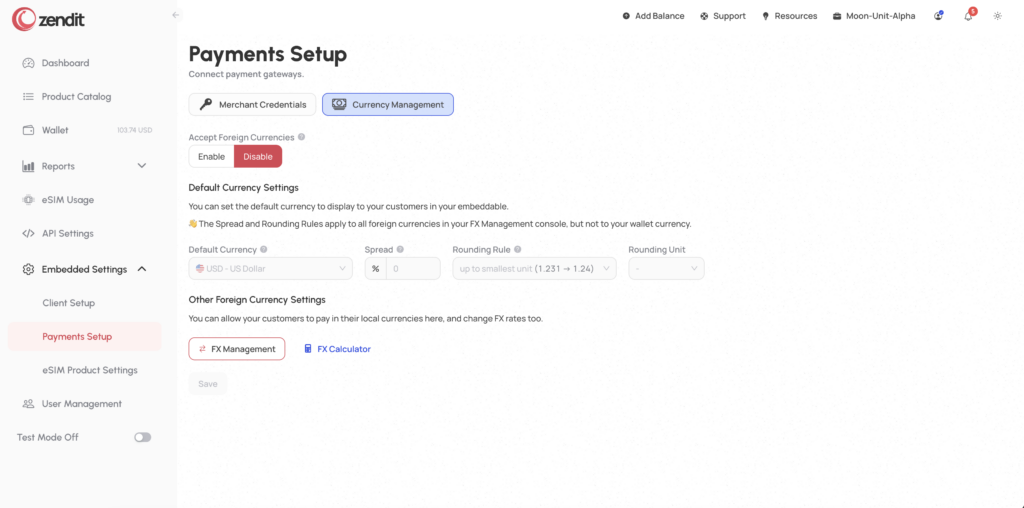
By default foreign currencies are disabled. When you are ready to allow foreign currencies, you may enable the currencies.
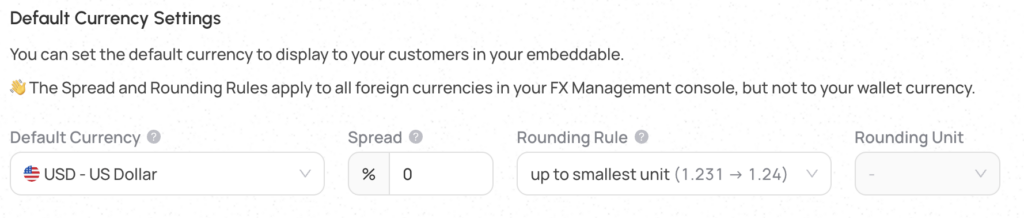
When you enable the feature, you have a few options that may be set. The first is the default currency. When a user first visits your embeddable, this is the currency they will be presented. If it is the only currency enabled, they will not be able to select another currency. If multiple currencies are enabled, they may select from the currencies that have been enabled to see pricing and purchase an item.
The next settings allow you to set a default spread %, default rounding rules and if using a specific unit to round to or charm pricing, the value you would like to use.
The default spread will be applied to any currency that is enabled that the spread has not been customized for.
The default rounding rule and rounding unit (if applicable to the rounding type) will be applied to any enabled currency that the rounding rules have not been customized for.
Values may be set here and saved turning on the foreign currency handling, or individual currencies may be customized before turning on purchases in foreign currencies.
Currencies may be viewed and settings customized by selecting the FX Management button. This will open up the complete set of currencies supported and allow you to enable or disable currencies, customize the spread and customize the rounding rules on a per currency basis.
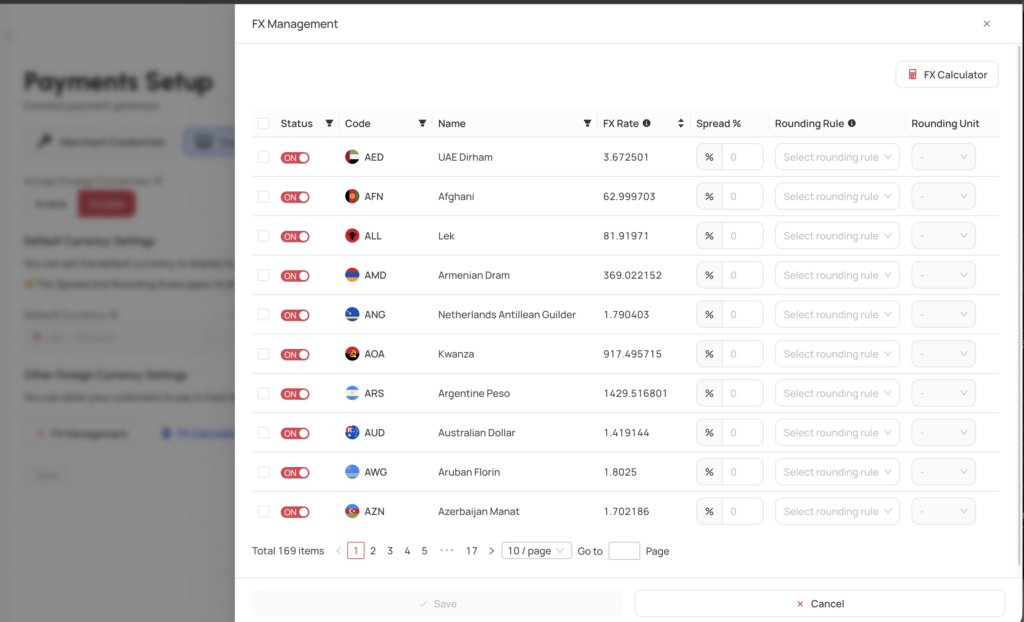
In the FX List, the day’s FX rate to your wallet currency is displayed and will be update daily. You may disable a currency to prevent purchases using the currency as well as set a custom spread and rounding rules on a per currency basis. The list also supports bulk editing so you may set the options for multiple currencies at the same time.
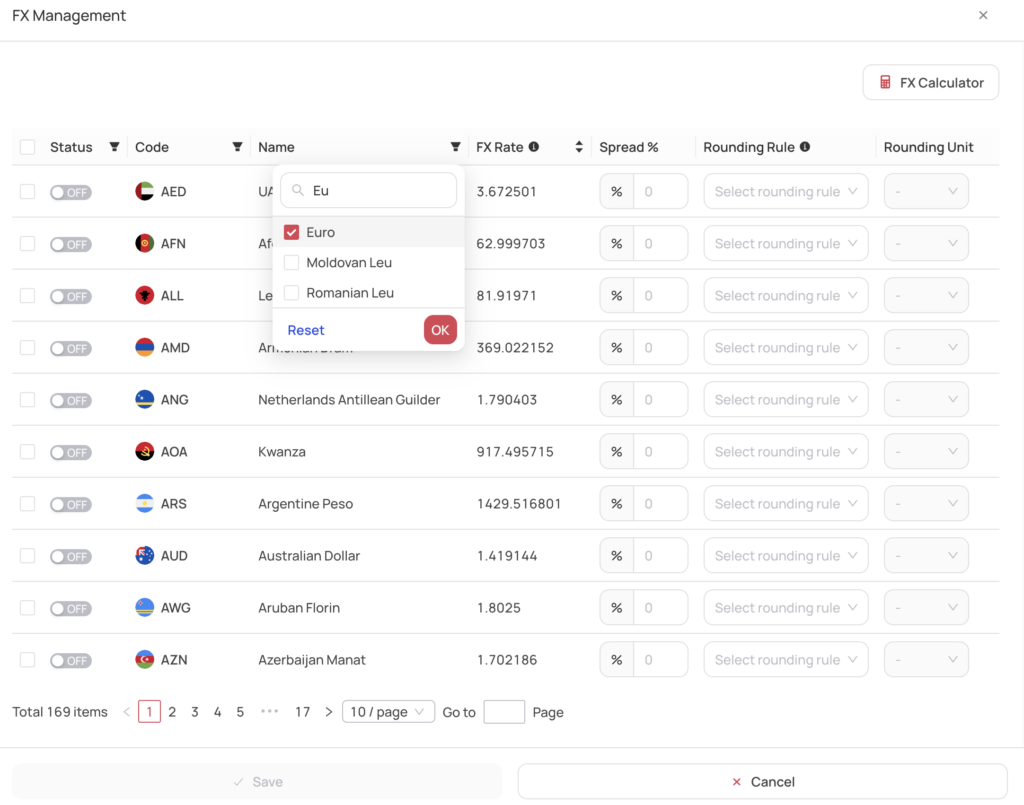
Finding a currency, you may use either the 3 letter ISO code or the name of the currency. The list supports type ahead to help in locating the currency you wish to customize.
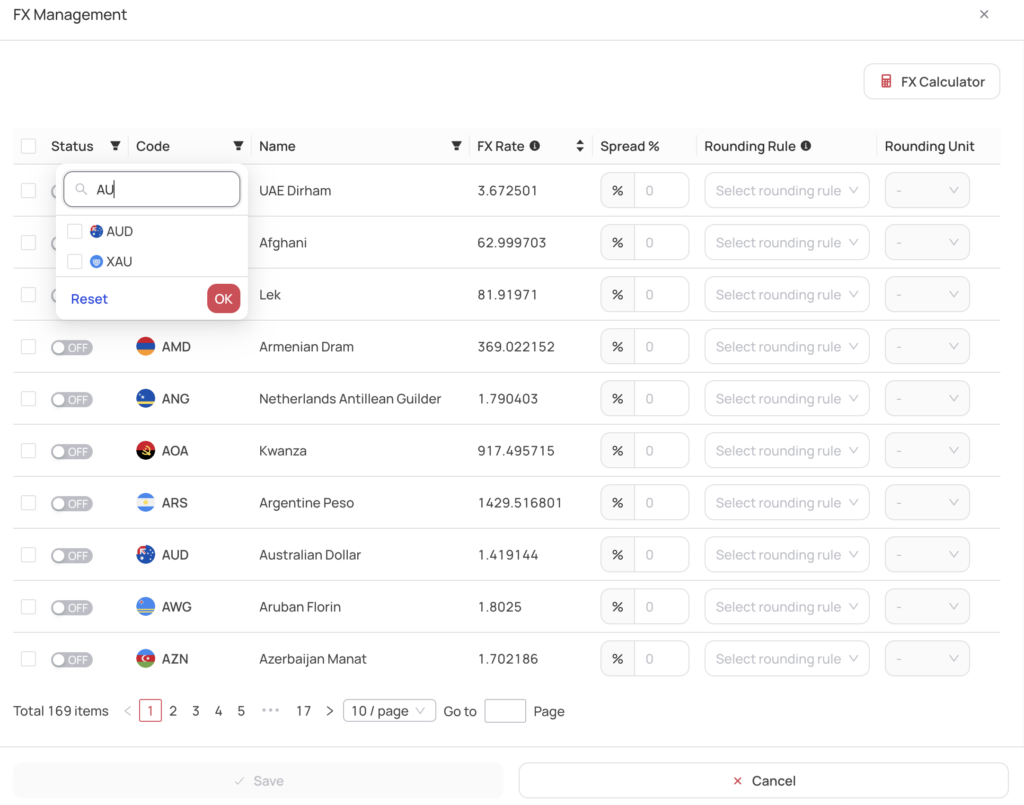
When selecting for a bulk operation, you may select just a few currencies, or the entire list:
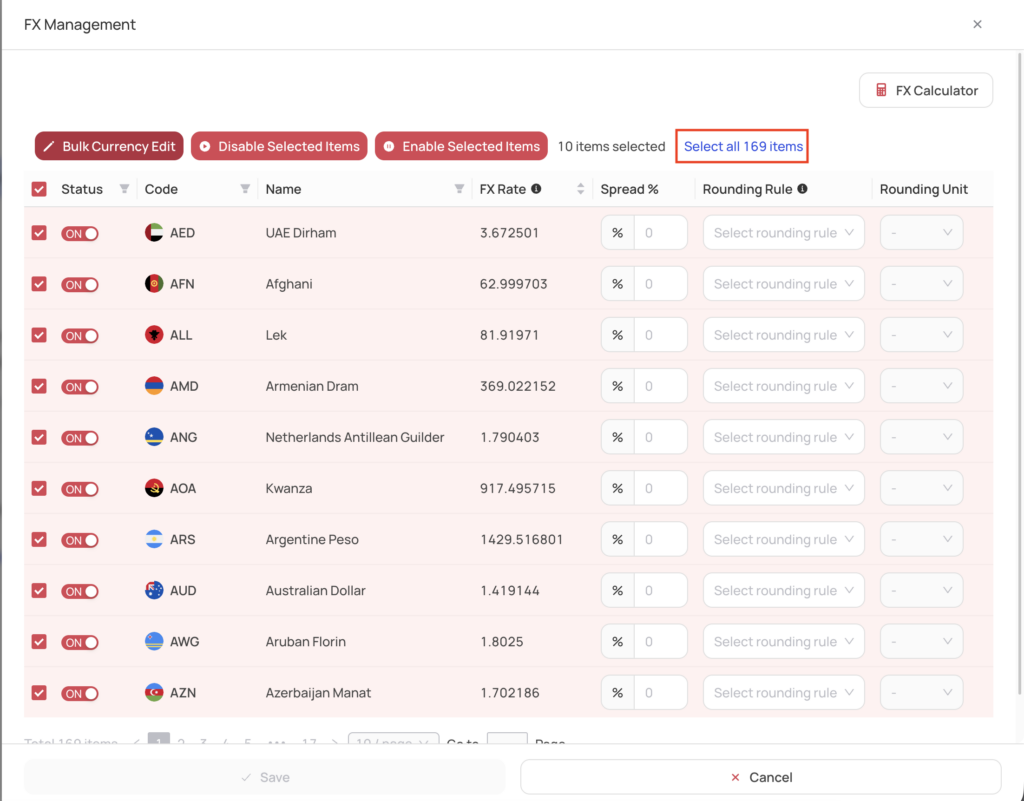
There are 3 buttons, Bulk Currency Edit, Disable Selected Items and Enable Selected Items.
By selecting Disable Selected Items, all currencies selected will be turned off. Enable Selected Items will turn on all selected currencies.
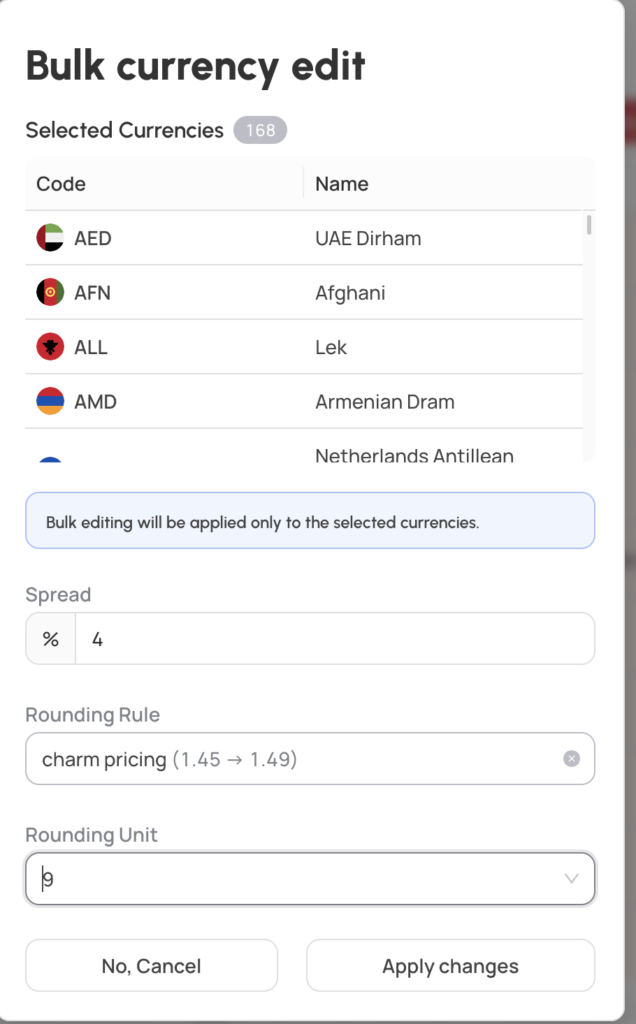
In Bulk Edit you may edit the spread and rounding rules for all selected currencies.
When setting up Payment Credentials, the merchant account will be checked for the currencies that are accepted. If a currency is not accepted by your payment processor (Stripe for example) the currency will be shown as disabled since it is not currently accepted.

These currencies will not be able to be turned on. You may set the spread and rounding rules on them in the case that the payment processor starts supporting the currency in the future.
Once you have setup your currency rules, you may save
To see how the spread and rounding rules on a currency affects the pricing a customer will be presented, you may select the FX Calculator from the payments setup screen or from the list of currencies when managing them.
In the FX Calculator, you may set a value to check and will see the effect of your spread and rounding rules what the client will see as their price.
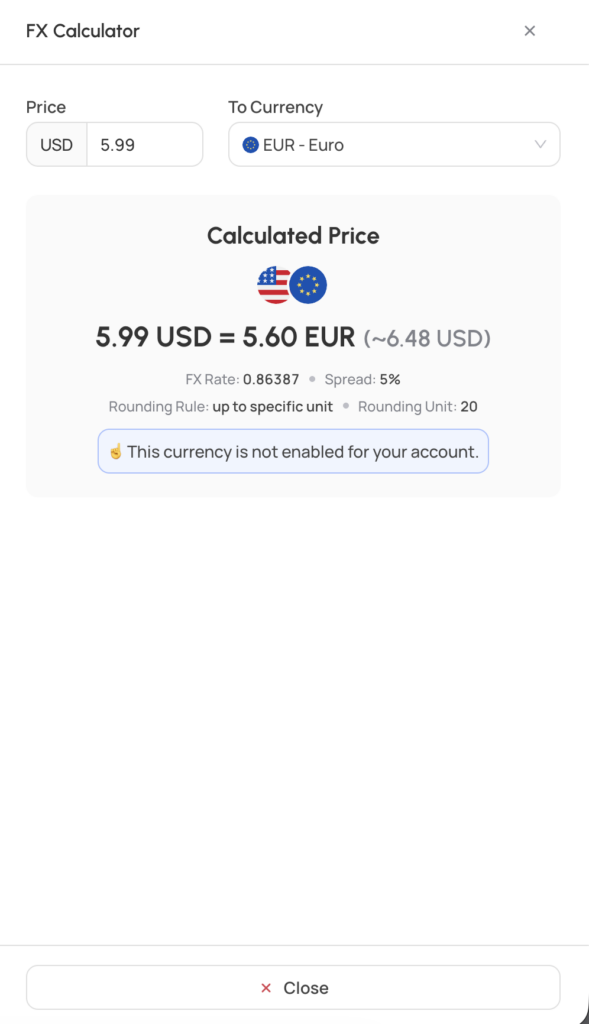
The price displayed will also include an estimated value in your wallet currency that will be collected based on the FX, spread and rounding rules. The value shown is before the merchant processor takes fees for processing the transaction and any FX fees for the transaction in a foreign currency.
Note that updates to currencies must be saved first for the calculator to pick up your settings on the currency to calculate properly.
Once the currencies are setup, the currency selector will be enabled on the embeddable component.

The first time a customer loads the embeddable it will open presenting the default currency.
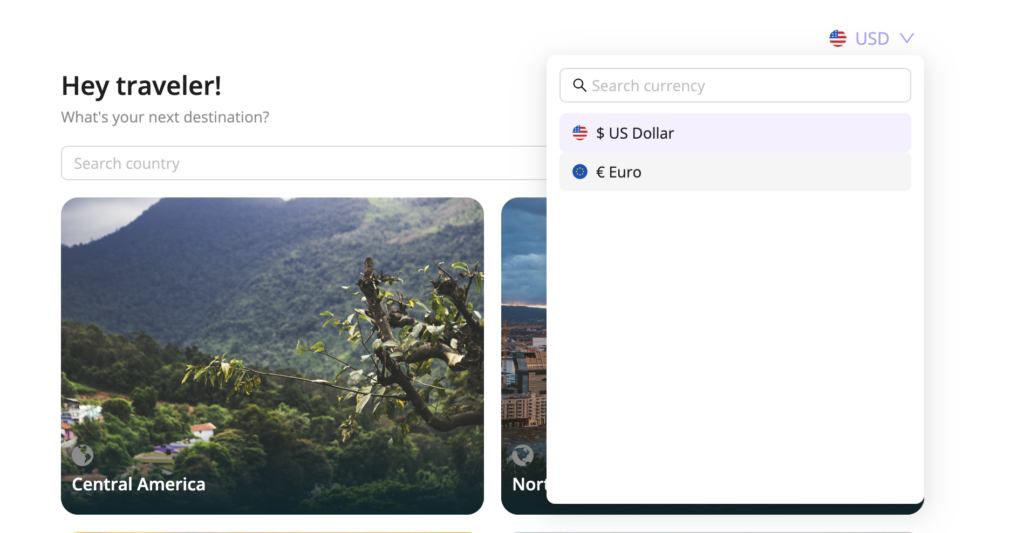
The customer is allowed to select their preferred currency (based on the enabled currencies) and shop the store with the prices and checkout in their selected currency.